Harmony
Digital chiming clock with 100+ chimes and 50 alarms + reminders. Multiple chime styles of Melody, Ships Bells, British Royal Ships Bells, Grande Sonnerie and Petite Sonnerie. On-screen date / time / part of day. Custom coloring, time / date format and many options.
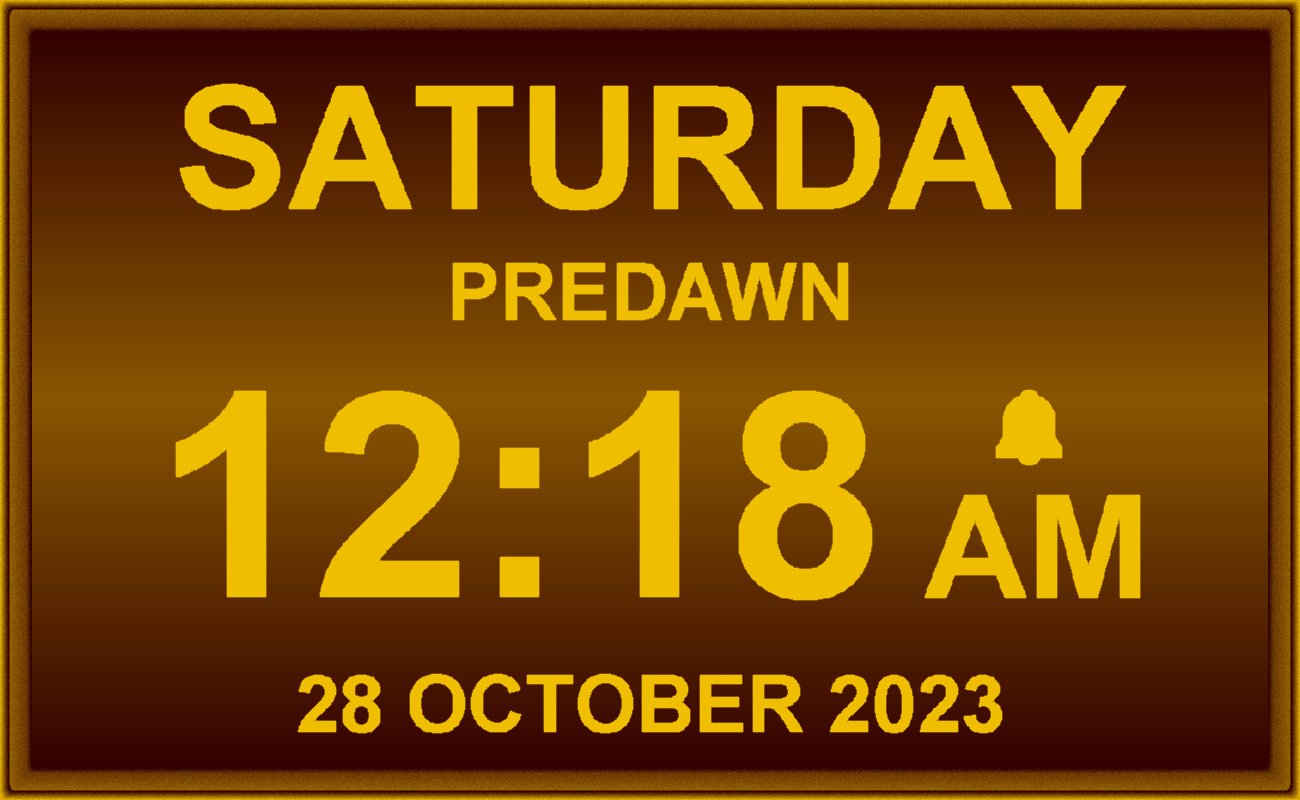
Harmony's clock face


Features

Information

App Name
Harmony
Version
1.0.4225
Type
Desktop App (Standard Edition)
License
MIT
Status
Updated
Release Date
11th April 2026
Portable App
Yes
Code Foundation
4th Generation (Gossamer for GUI)
Operating System(s)
Windows All and Wine for Linux and Mac
(not Win10s/11s)
SHA256 Checksum
for "harmony.exe"
5764D3CD59102A32EBD5414FBCB308D8E9F9668617198635E7027272E791AC15

Downloads

harmony.exe (1.75 Mb) harmony.zip (0.89 Mb) harmony.7z (0.70 Mb)

harmony-sourcecode.zip (2.56 Mb)
App and pascal source code
harmony-sourcecode.7z (1.94 Mb)
App and pascal source code

Images

Harmony's clock face


Clock face settings
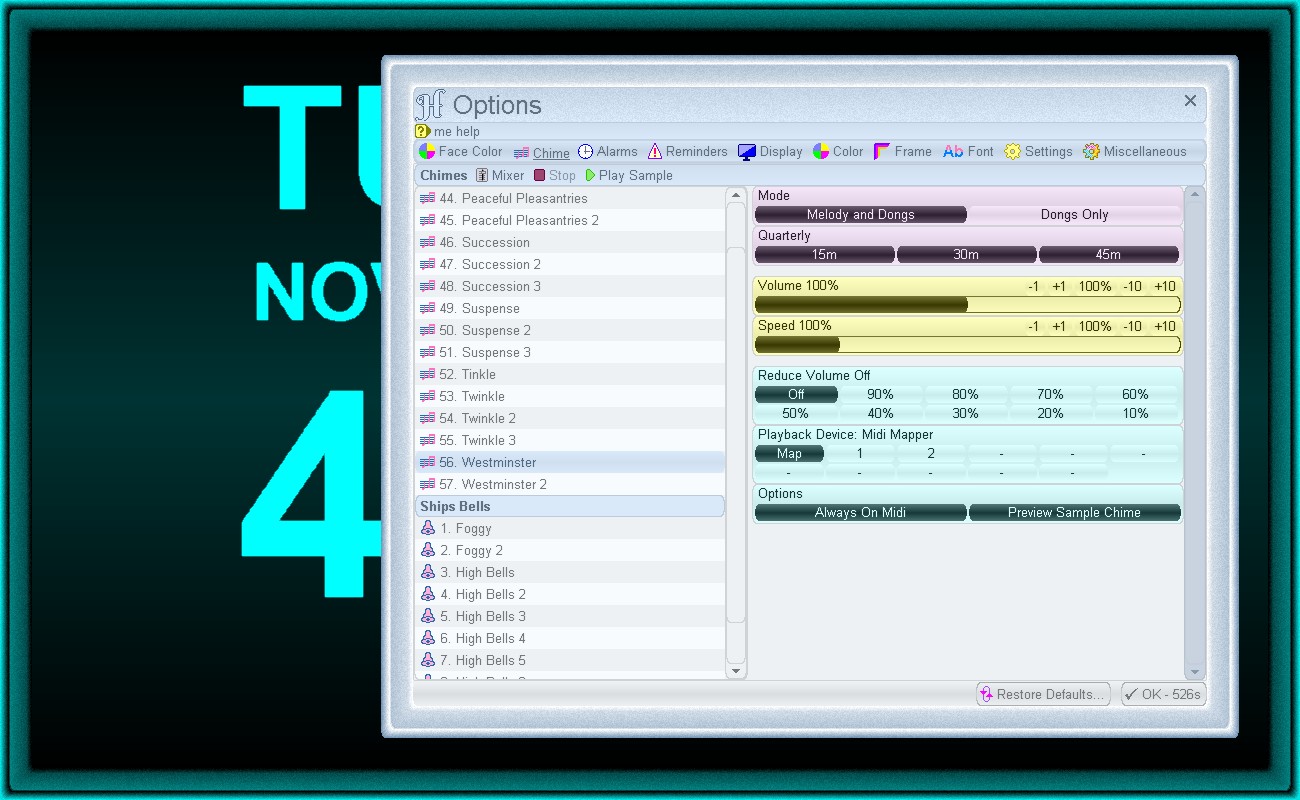

Select a chime and adjust it's settings
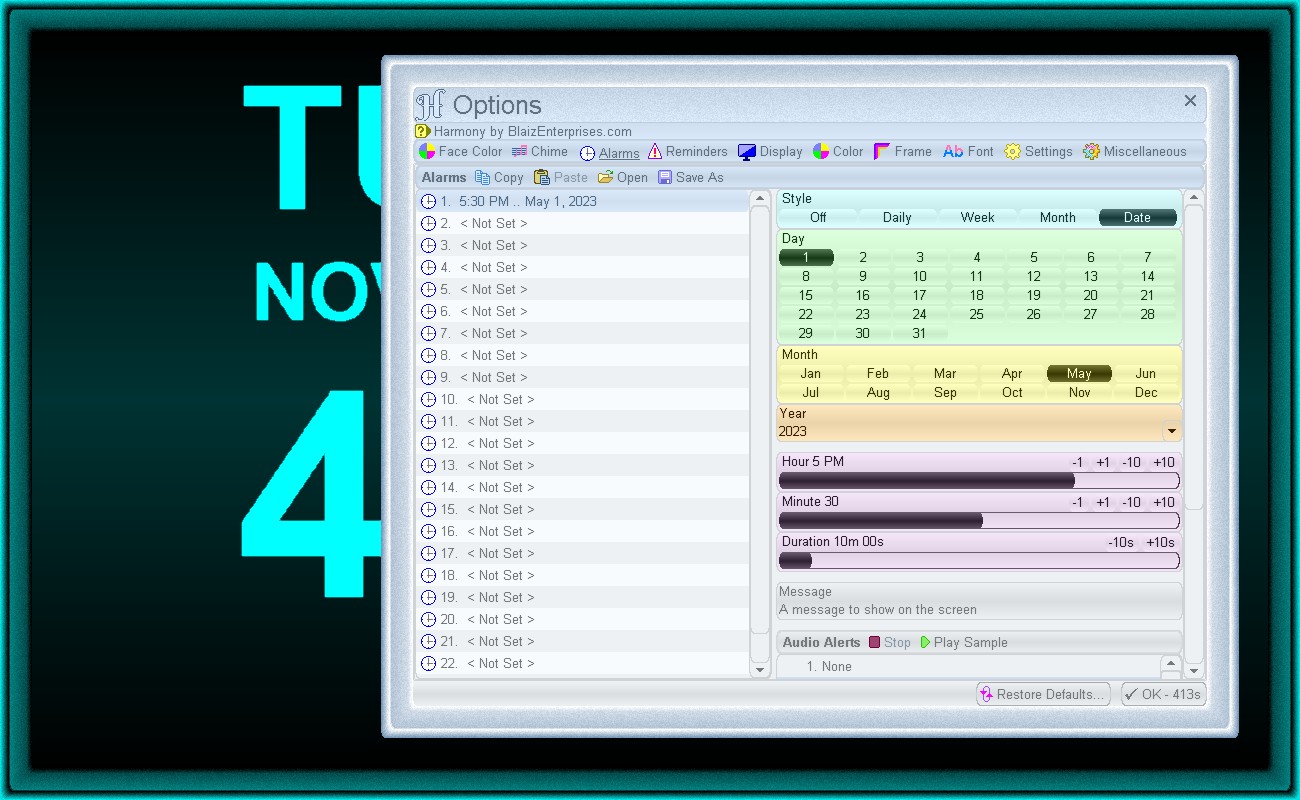

Setting an alarm is straightforward
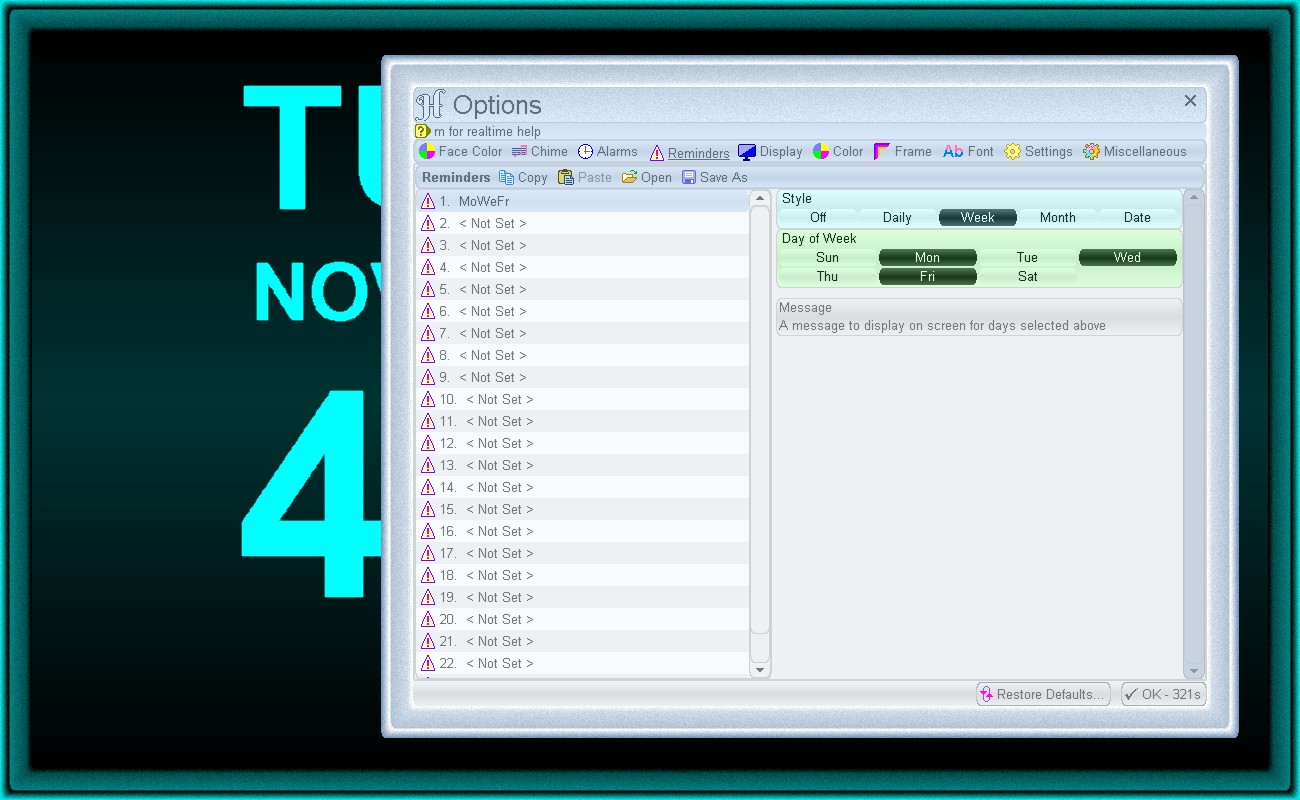

Create a reminder with a few clicks
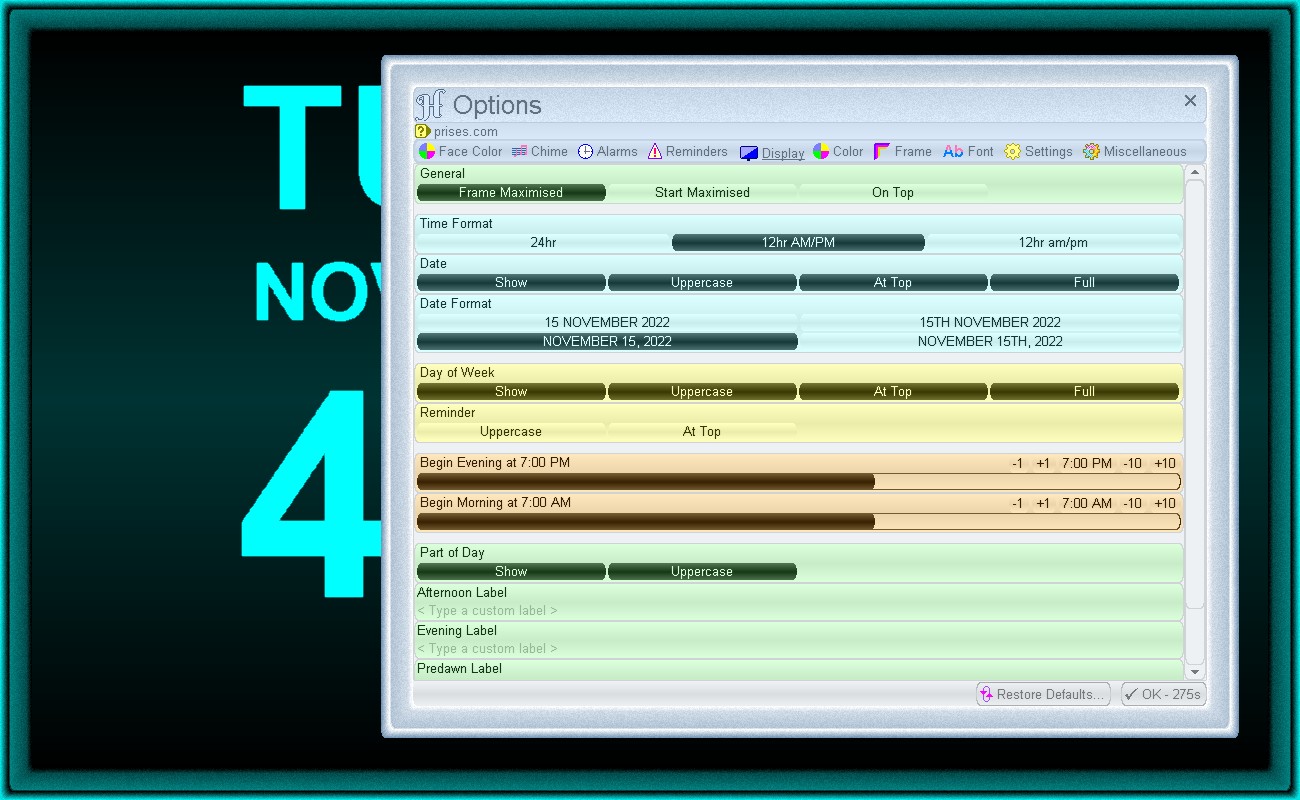

Customise how Harmony displays the date, time, reminders and more
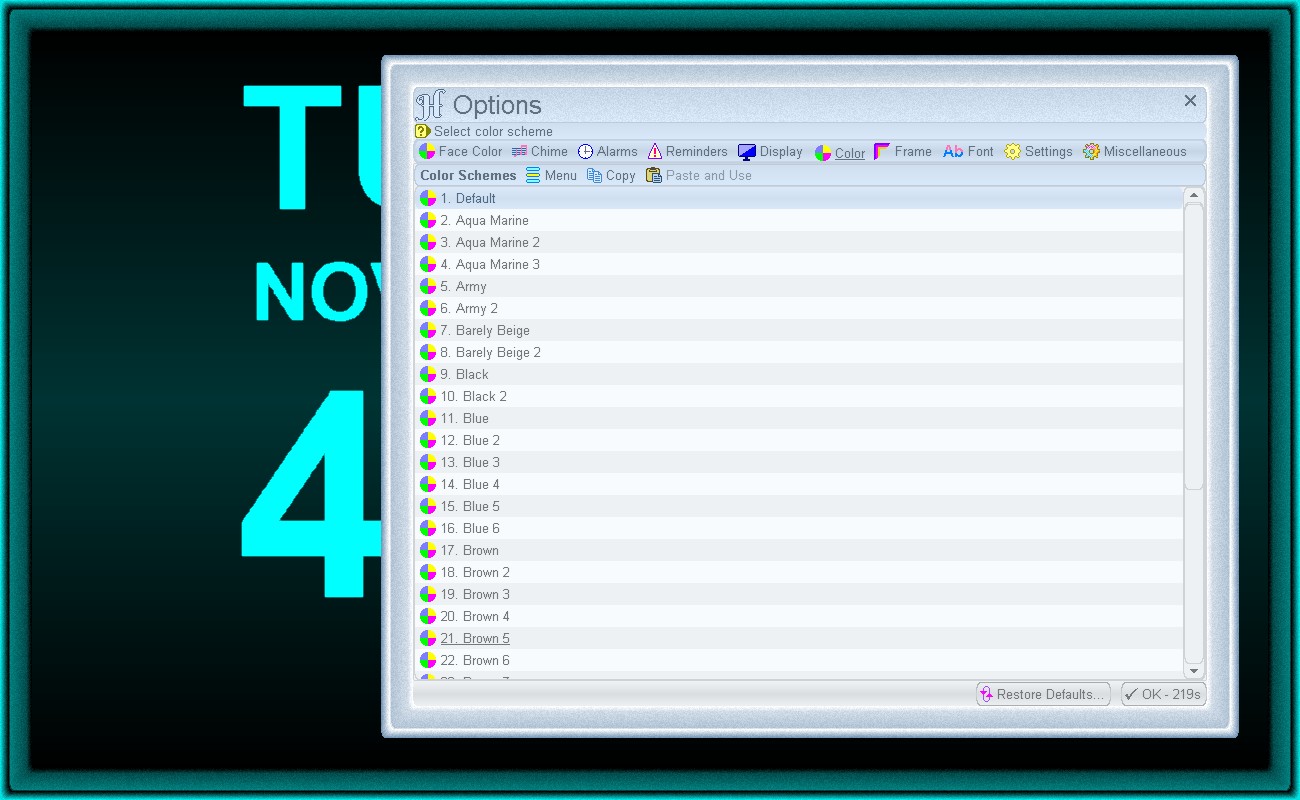

Harmony's Options window
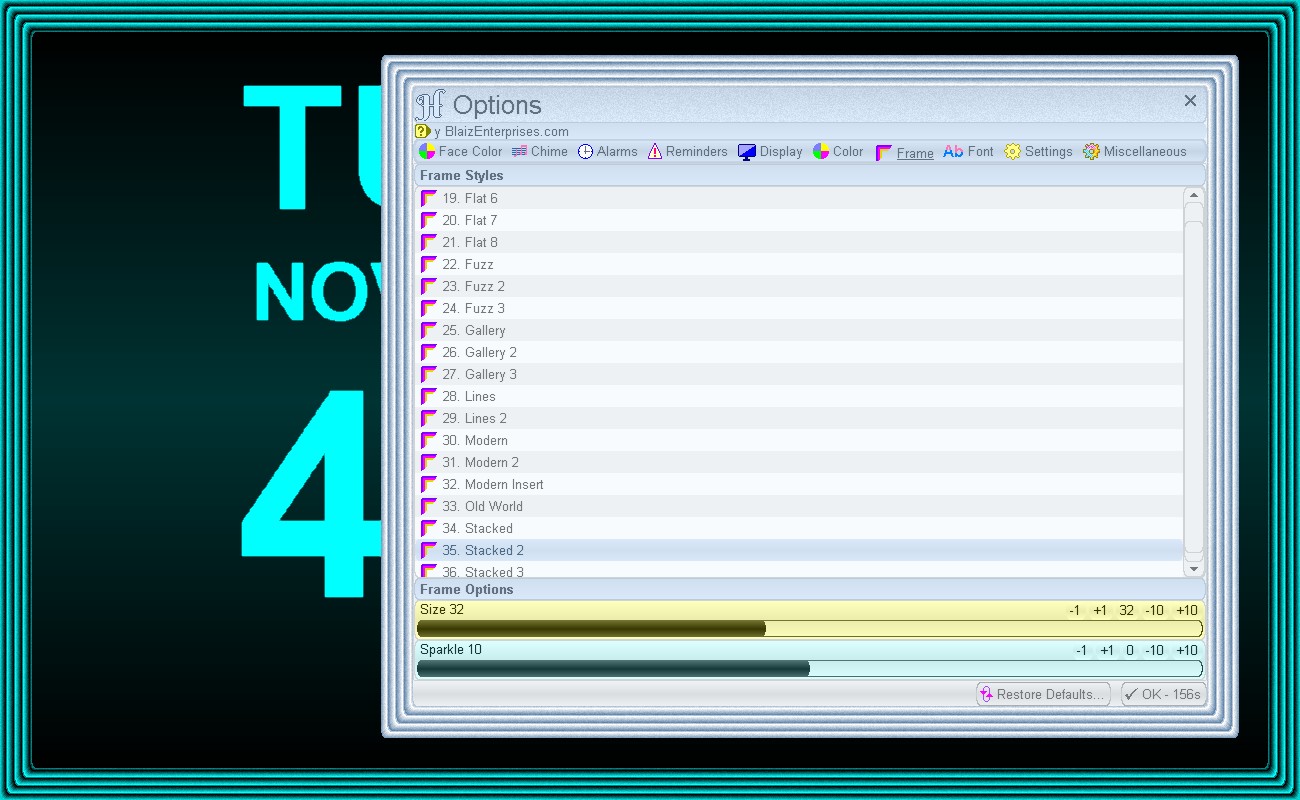

Harmony customised with system color scheme "Black and Aqua" and animated background scheme "Balls"


Online Help

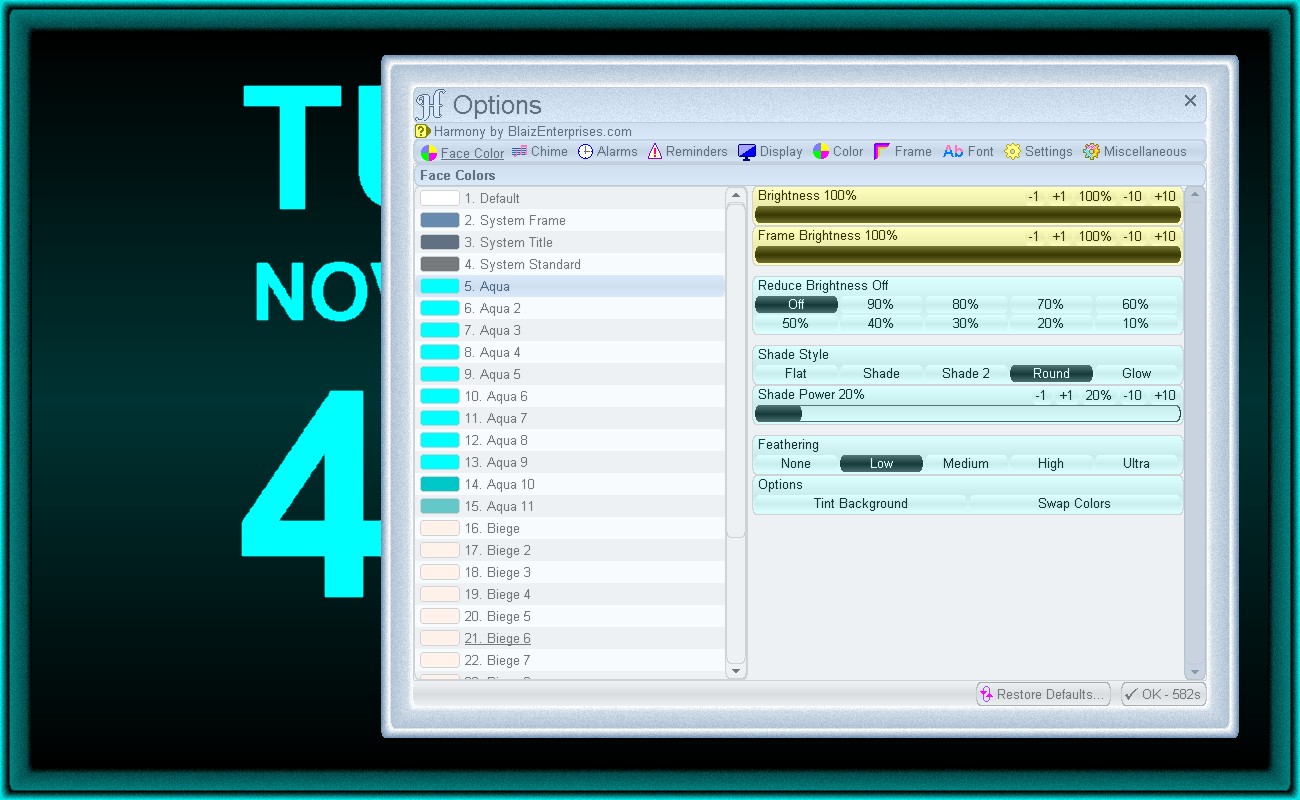
Change clock face coloringSelect the "Face" tab.

Change Face Color
The app comes with 140+ built-in color-pairs (text and background) and 10 customisable color-pairs.  Select a built-in color-pair from the list to change the clock face and frame in realtime.

There are three special built-in dynamic color-pairs:
1. System Frame
2. System Title
3. System Text

These dynamic color-pairs sync the clock face and frame coloring to the current system color scheme in use - see "Options > Color" for a list of available system color schemes.

Custom Face Color
Scroll down to the bottom of the "Face Colors" list.  Select a custom color-pair "Custom 1-10".  In the right column a "Custom Colors" panel will display about halfway down and two color palettes "Background" and "Text".

Click a color palette to display a "Color" window and pick a unique color.  When done, click the "OK" button to set.  The clock face will update in realtime.

Alternatively, you may click and drag the color palette to acquire a screen color in realtime, updating the clock face and frame as you go.  Release to set the color.

Settings
Brightness:
Sets the brightness of the clock face text and background on the screen.  Use a high value for greater brightness and crisper text / background contrast, and a lower value for a duller, lower text / background contrast for more comfortable night viewing.

Frame Brightness:
Adjust the brightness of the frame coloring relative to the clock face brightness.

Dim To:
Optionally and automatically dim / lower the clock face and frame brightness for custom night viewing during the "Evening" part of the day.

Off = disabled
90-10% = on, clock face text / background and frame brightness automatically reduce (dims) between the hours of evening and morning, typically set to 7 PM - 7 AM  - adjustable under the "Display > Begin Evening" and "Begin Morning" options.

Shade Style:
Set clock face background shade style.

Shade Power:
Adjust the clock face background shade strength.  Range is from -100% (shade to black) to 100% (shade to color).

Text Feathering:
Set clock fact text / symbol feathering.  Strength and visual effect is partly dependent on the current system font in use - see "Options > Font" tab for available font options.

Tint Background:
Select this option to bleed a portion of the clock face text color into the background color.

Swap Colors:
Select to switch the clock face text / background colors around.

Change the chimeSelect the "Chime" tab.

The app comes with 56 Melody, 30 Ships Bells and 16 Sonnerie chimes in one continuous list.  The list is split into three sections - Melody, Ships Bells and Sonnerie.  Selecting a chime from one of the three sections automatically determines the type of mechanism used to sound the chime.

Chime Type - Melody
A melody chime typically has a musical introduction played on the hour (e.g. 7:00 PM), followed by a series of dongs and can be optionally chimed once on the quarter hour.  An example is the Westminster chime.

Mode:
Melody and Dongs - Select to play the chime's musical melody and dongs
Dongs Only - Select to exclude the hourly musical melody and sound only the chime's dongs

Quarterly:
15m - Select to play a single dong at quarter-past the hour (e.g. 7:15)
30m - Select to play a single dong at half-past the hour (e.g. 7:30)
45m - Select to play a single dong at quarter-to the hour (e.g. 7:45)

Chime Type - Ships Bells
A Ships Bells chime sounds out the time using a series of double and single dongs, which is used aboard ships to tell the time by sound.

Mode:
Standard - Select to sound original ships bells
British Royal - Select to sound modified British Royal - In 1797 at Nore a mutiny started during the dogwatch at five bells (6:30 PM), afterwards British ships changed the sequence to omit these five bells.

Chime Type - Sonnerie
Typically a fast sequence of high-pitched dongs and optional quarter hour dongs - a different way of telling the time by sound.

Mode:
Grande Sonnerie - Select to chime hourly dongs quarterly along with quarterly dongs
Petite Sonnerie - Select to chime hourly dongs on the hour only along with quarterly dongs

Quarterly:
15m - Select to play quarter-past the hour dongs (e.g. 7:15)
30m - Select to play half-past the hour dongs (e.g. 7:30)
45m - Select to play quarter-to the hour dongs (e.g. 7:45)

Volume
Set chime volume to 0-200%.  High values for louder chiming and lower values for quieter chiming.

Speed
Set chime speed to 25-400% playback speed.  100% is normal.  200% is twice the playback speed and 50% is half the playback speed.

Reduce Chime Volume
Automatically quieten chiming during the evening hours.

Off = no volume reduction
90-10% = on, chiming volume quietens between the hours of evening and morning, typically set to 7 PM - 7 AM  - see the "Display > Begin Evening" and "Begin Morning" options to adjust.

Playback Device
The app uses your computer's midi system to chime.  Choosing a different midi playback device may change the tone and quality of the chime.  The default device is set to "Map", which uses your computer's standard midi device for chiming.  For Windows 10 and above this is the first installed midi device.  This can be either a physical hardware midi device (e.g. soundcard / built-in sound chip) or a software midi device (a virtual sound device that can be used to upgrade the sound and quality of midi without the need for new or upgraded hardware).

Midi devices can be switched between in realtime during chime playback / sampling, making it easier to choose the right midi device.  Simply select a midi device between 1-10 (numbers are shown when a compatible midi device is present and active) to play a chime on that device.

Note:
Under Wine on Linux, the correct midi device may take a few tries to find, as there are often several midi devices listed that do not produce sound and typically only one that does.  To find the right device that does produce sound, play a sample chime and select each device in turn until you hear the chime.  If no sound persists, you may need to tweak / adjust your midi hardware and software configuration, which on Linux can be somewhat difficult.

Wine on Mac is typically straightforward.  The Mac usually has one built-in midi device already setup to play midi sound without any complex or additional configuration requirements.  Therefore, a chime should be heard without any fuss.

Options
Always on Midi - Select to maintain an open connection to the midi device for fast, lag free chime commencement.  On older computers / operating systems this feature can deny other apps access to the midi device as midi was only accessible to one app at a time.  More modern operating systems have mitigated this bottleneck and allow the midi device to be shared amongst many apps at once.

Preview Sample Chime - Select to play a sample chime whenever a chime name is selected from the "Chimes" list.

Set / change an alarmSelect the "Alarms" tab.

The app comes with 50 customisable alarms, each of which can be copied to and pasted from Clipboard.

To cancel / silence a sounding alarm click or tap the clock face once.

Toolbar Links
Copy - Copy selected alarm to Clipboard
Paste - Paste alarm from Clipboard and overwrite current alarm
Open - Load all alarms from file
Save As -  Save all alarms to file

Choose an Alarm to set
From the "Alarms" list select an alarm slot 1-50.  Set the alarm style (right column) to Off, Daily, Week, Month or Date.  Each option has a different range of settings.  Below is a list of common settings to all alarms:

Hour:
Set alarm hour - 12 AM to 11 PM

Minute:
Set alarm minute - 0 to 59

Duration:
Set the length of time for which to sound the alarm.  Range is 10 seconds to 2 hours in 10 second intervals.

Message:
Type a message to display on the clock face.  An alarm message is flashed during the alarm period to attract attention.  In addition, long messages are scrolled horizontally from right to left across the clock face for full message viewing.

Alarm Buzzers:
Select an optional alarm buzzer to sound an audible alarm.  When set, the buzzer volume will gradually increase from silent to the current chime volume for a gentle wake up.

Alarm Style - Off
No alarm - alarm is disabled and all values previously set are retained but hidden from view.

Alarm Style - Daily
Sound an alarm every day at the set time.

Alarm Style - Week
Sound an alarm at the set time on the selected days of the week, every week.

Day of Week:
Sun to Sat - Select all the days to sound the alarm on.

Alarm Style - Month
Sound an alarm on the set month, day and time, each year.

Day:
1 to 31 - Select the day of the month.

Month:
Jan to Dec - Select the month of the year.

Alarm Style - Date
Sound an alarm on the specified year, month, day and time.

Day:
1 to 31 - Select the day of the month.

Month:
Jan to Dec - Select the month of the year.

Year:
Select the down arrow to choose a year from the list provided, or type a year into the box.

Set / change a reminderSelect the "Reminders" tab.

The app comes with 50 customisable reminders, each of which can be copied to and pasted from Clipboard.

Toolbar Links
Copy - Copy selected reminder to Clipboard
Paste - Paste reminder from Clipboard and overwrite the current reminder
Open - Load all reminders from file
Save As -  Save all reminders to file

Choose a Reminder to set
From the "Reminders" list, select a reminder slot 1-50.  Set the reminder style (right column) to Off, Daily, Week, Month or Date.

Each reminder has a Message:
Type a message to display on the clock face.  Reminders are displayed on the clock face in a static fashion.  They are not flashed like their Alarm counterparts.  A long reminder message will be scrolled horizontally from right to left to display the entire reminder.

Hint:
A reminder is shown for a whole day (24 hours) and commences at midnight and terminates immediately before midnight on the following day.

Reminder Style - Off
No reminder - reminder is disabled and all values previously set are retained but hidden from view.

Reminder Style - Daily
Show the reminder every day.

Reminder Style - Week
Show the reminder on the selected days of the week, each week.

Day of Week:
Sun to Sat - Select the days to show the reminder.

Reminder Style - Month
Show the reminder on the set month and day, each year.

Day:
1 to 31 - Select the day of the month.

Month:
Jan to Dec - Select the month of the year.

Reminder Style - Date
Show the reminder on the set year, month and day.

Day:
1 to 31 - Select the day of the month.

Month:
Jan to Dec - Select the month of the year.

Year:
Select the down arrow to choose a year from the provided list or type a year into the box.

Adjust various clock display options and formatting stylesSelect the "Display" tab.

General
Frame Maximised:
Select to display a frame when the app is maximised or in fullscreen mode.

On Top:
Select to place the app above all other currently running apps.

Automatic Startup:
Select to start the app when the computer starts up / boots.

Color Contrast:
Select to colorise important settings and input areas.

Retain Pos / Size:
Select to remember the app's position and size on the screen next time it's started.

Click To Show:
Select to require a click or tap on the clock face to show the main toolbar when hidden.  This option is useful when the app is on another monitor or forms part of your work flow environment where any unwanted cursor movement should not falsely trigger the automatic display of the app's main toolbar.

Reminder
Uppercase:
Select to show the reminder message in uppercase characters.

At Top:
Select to display the reminder message at the top of the clock face, otherwise at the bottom.

Time Format
24hr:
Select to display the current time in 24 hour format.

12hr AM / PM:
Select to display the current time in 12 hour notation with uppercase "AM" or "PM".

12hr am / pm:
Select to display the current time in 12 hour notation with lowercase "am" or "pm".

Date
Show:
Select to display the current date on the clock face.

Uppercase:
Select to format the date in uppercase characters - e.g. NOVEMBER.

At Top:
Select to show the current date at the top of the clock face, otherwise at the bottom.

Full:
Select to display the date with the full month label  - e.g. April - otherwise abbreviated - e.g. Apr.

Date Format
Choose from one of the six predefined date formats.

An example of the six date formats:

Day of Week
Show:
Select to display the current day of the week - e.g. Monday.

Uppercase:
Select to display the day of the week in uppercase characters - e.g. MONDAY.

At Top:
Select to display the day of the week at the top of the clock face, otherwise at the bottom.

Full:
Select to use the current day's full name - e.g. Monday - otherwise abbreviate it - e.g. Mon.

Part of Day
Show:
Select to display a descriptive label for the part of the day - e.g. Afternoon, Evening, Predawn and Morning.

Uppercase:
Select to display the part of the day label in uppercase characters - e.g. EVENING.

Begin Evening
Set the point in time that afternoon transitions into evening - the default value is 7 PM.  Range is 1-11 PM.

Begin Morning
Set the point in time that evening transitions into morning - the default is 7 AM.  Range is 1-11 AM.

Afternoon Label
Type a custom label for the part of the day for "Afternoon" or leave blank to use the default label.

Evening Label
Type a custom label for the part of the day for "Evening" or leave blank to use the default label.

Predawn Label
Type a custom label for the part of the day for "Predawn" or leave blank to use the default label.

Morning Label
Type a custom label for the part of the day for "Morning" or leave blank to use the default label.

Change the coloring of the app's GUIFrom top toolbar click " Options" or app menu "... > Options" (top right of window).  An "Options" window will display.  Select " Color" tab to show list of color schemes.

The "Color Schemes" list is split into three sections:
1. Built-In color schemes - read only/use as is
2. Custom color schemes - user customisable and labelled Custom 1-10
3. Saved color schemes - user customisable and saved as file(s) on disk

There are 160+ built-in color schemes to choose from.  Simply select a color scheme to apply in realtime.  For instance, Aqua Marine.  Watch as the app's GUI changes color instantly - no need for an additional load, apply, or set.

A Blaiz Enterprises' color scheme (*.bcs) at its core is a list of twenty colors, responsible for coloring most aspects of the app's GUI.  Some specialised colors are derived automatically from these.  Two colors for the frame, nine for important areas, Title colors, and nine more for common zones, Standard colors.

Each built-in color scheme has it's own unique set of colors.  A custom color scheme allows for colors to be customised.  To create a custom color scheme, scroll down the list to the section titled "Custom".  He you'll find ten custom color scheme slots - each fully customisable in realtime without any need to be named, saved or applied.  Tap or click on a slot to start - for example slot 1 - "Custom 1".

On the right a series of editable color palettes will appear.  Click a palette to display the color dialog window.  Adjust color as desired and click OK when done.  Alternatively, click and drag your mouse cursor/fingertip from the color palette to acquire color from your computer screen in realtime.  App GUI continuously updates to reflect changes in color.  All changes are automatically saved.

Give your new color scheme a nameWant your shiny new color scheme to have its own name?  Easy.  From the color schemes list - click "Options > Color" to display dialog - scroll down to the "Custom" section, select your custom color scheme, and click " Menu > Save As...".  Type a name and click the "Save" button.  Your color scheme is saved to disk and listed under the "Saved" section of the color schemes list - next section down.

Any color scheme can be saved to disk, and then edited.  For instance, you can select one of the built-in color schemes, such as Aqua Marine, and save it to disk, then customise as desired.

How to use your named color schemeClick "Options > Color" to show the color schemes list.  Scroll down to the last section named "Saved".  This section presents a list of all your saved color schemes in one central location.  Select a scheme to use.

Can I edit my saved color scheme without having to re-save it/load it etc?Yes.  Any saved color scheme can be customised without fuss.  Click "Options > Color" and scroll down to the section named "Saved", click the color scheme you wish to edit, and adjust the color(s) as desired.  All changes are saved automatically back to the file on disk, without any need to explicitly save.

What is a background scheme?A background scheme is a static or animated image tiled across the background layer of the app.  The app's GUI components merge into this layer.  There are 70 built-in background schemes, based on static images and dynamic coloring with different presets, like horizontal and vertical scroll speeds, fade in and out rates, color change rate and wobble levels.  These functions allow for a static image / dynamic color generator to give movement to the app.  While some background schemes are specially set for animation, others are not.

A background image can be rendered in full RGBA color, or shade-shifted toward greyscale, or shade-shifted toward the app's current highlight color.  One slider, Colorise, controls this tri-function.

A background scheme supports a maximum image color depth of 32 bits in RGBA format - 8 bit red, green, blue and alpha channels - for instance a transparent PNG image.

Note:
An animated background scheme can operate at frame rates of up to 60 fps (frames per second), which means the entire GUI of the app is repainted in full, 60 times per second, like a video, and therefore can consume quite a bit of CPU power, especially at high resolutions.  It is recommended a modern, powerful machine be used for high frame rates/resolutions in order to maintain smooth operation of the GUI/app.

Sliders and their meanings:

Strength (0..255):
Determines how much of the background image is seen/made visible.  A low value renders the background subtly beneath the GUI, whereas a high value, 100-255, renders it boldly.  A value above 100 is disabled by default.  To enable, click "Options > Settings" and deselect "Display > Safe Background".  A value over 100 may overpower the GUI making it hard to navigate or operate.  If this becomes the case, press the "F2" key, and then the Enter key to confirm restoration of the app's default settings.
 
Colorise (-100..100):
Set the color rendering method.  A value of 100 renders the background image in full color, a value of 0 in greyscale, and a value of -100 in the app's current highlight color.

Speed (0..20):
Paint speed in frames per second.  0 is static - the background scheme only repaints when required.  This is the least stressful option.  A value of 1-20 sets a constant repaint cycle of 1-20 fps (frames per second).

Horizontal Scroll/Vertical Scroll (-100..100):
Moves background image left/up (minus value) or right/down (plus value) by X pixels.  A value of zero turns movement off.

Horizontal Wobble/Vertical Wobble (0..300):
Applies a wobble factor to the above Horizontal Scroll/Vertical Scroll movement(s).

Fade In/Out (0..50):
Cycles through a high-to-low-to-high intensity flow, gradually fading the background image from view, then back again, in a continuous cycle.  Use a low value for a slow cycle, and a high value for a fast cycle. 

Fade Wobble (0..200):
Applies a wobble factor to the Fade In/Out flow cycle above.

Change Rate (0..100):
Applies to a dynamic color background scheme, such as Random Color, governing how quickly to transition too a new color.

Can I customise a background scheme/background image?Yes you can.  There are 10 custom background scheme slots.  Click "Options > Background" and scroll down to the section named "Custom".  For instance, click on "Custom 1".  A sub-toolbar will display in the right column at the top.  From there, you can paste in an image from Clipboard - click "Paste", or open an image from file - click "File".

For best visual results, your image should be a similar size to the app's overall area, and be prepped for tiling work - that is, have it's right and bottom edges modified so that its colors/pixels seamlessly wrap back round to its opposing edge (right-to-left and top-to-bottom).  You can use a tile creation app, or a good quality graphics app to accomplish this, or use our "Blend It" app to prep your image.

Without this, tiling the image may present abrupt edges of unwanted opposing lines of horizontal/vertical colors, and be visually jarring in nature.

Adjust the sliders as required to accomplish animation and visual effects.  All changes to the image and sliders are saved in realtime.

How do I change the frame style, size and sparkle strength/effect?The frame on our apps have a long history reaching back to the late 1990s, where they first adorned our FastCards and PowerCards (still/animated electronic musical greeting cards).

In the context of an app, they primarily serve as a large, easy-grip area for resizing the app's overall size, and a touch of decoration to boot.

A frame can be made wide or narrow as required.  The modern app has a typical frame width of 7 px in a plain style, so as not to distract or occupy excessive screen real estate.

Furthermore, a frame may render with an optional, randomised sparkle effect, with a range of 0 (no sparkle) to 20 (heavy sparkle).

Click "Options > Frame" to edit the app's current frame settings.  A list of 50 built-in frames is available to choose from, ranging from Antique to Traditional 5.

Toward the bottom of the window are two sliders to adjust the frame's Sparkle (strength) and Size (width in pixels).  A frame can be sized from 0 px (no frame) up to a wide frame of 72 px.  All changes update in realtime.

Change app text sizeThe text size (font size) can be set between 6 and 24.  Click "Options > Font" and choose a size option.  Any change updates the app text in realtime.

In some instances, the app may display slightly larger or smaller text in special areas, however this text is directly scaled from the size set.

By default the app uses a size of 10.

Note:
Not all sizes are supported by all fonts.  On Ubuntu for instance, a large font size for Arial can cause text to appear weird or slightly off.  If this occurs, try reducing the font size a tad, or alternatively select another font (font name).

Change app fontA font determines what sort of characters appear on the screen, and in what style.  Click "Options > Font" and choose a font name (font) from the list of options, from Arial to DejaVu Serif.  Any change updates the app in realtime.

Older fonts like "System" were simple formats constructed from small images or bitmaps, one per character, and did not scale up very well, partly because to save on memory, not all character sizes were stored inside the font.  Today, modern fonts use mathematical vectoring to draw shapes and lines etc to construct characters on the screen, though the infrastructure and overhead required for such fonts can be complex and heavy on a computer system.  But because these fonts employ mathematics to draw their characters, they do scale up well.

Eleven common font name options are presented for best compatibility and visual appearance, taking into consideration operating systems as old as Window 95, through to modern-day Windows 11, and other systems such as Mac and Linux.

In general, you want a font that is widely supported and guaranteed to render well on most computers.  Bearing that in mind, Arial, is a good choice, as it is widely supported by operating systems going as far back as Windows 95, if not further.

If a font name is selected but is not supported by the current computer, for example "DejaVu Sans" - not supported by Windows 95 - a close approximate/fallback font is used instead.

For a specific/custom font, click the "Custom" option once to switch it on, and click it again to display a Font dialog.  Choose the font name from the list of fonts and click the "OK" button when done.

If the app becomes unreadable, or hard to read after choosing a new font name - it can happen with a bad font, a foreign language font, or a symbols only font like "Wingdings" - press the "F2" key to restore the app's default settings.

Change app font featheringFor maximum font compatibility, two completely separate methods are employed to render text with antialiasing.

Click "Options > Font" for font settings.

1. The first method, Font Feathering, is a simple feather designed specifically to outline each text character in realtime.  This has the effect of gently softening the often harsh outline of text characters on LCD screens, which by their nature do not blur neighbouring pixels, as the older CRT (Cathode Ray Tubes) did.

The feather is universally applied to both bitmap fonts (older image based fonts) and vectors fonts (newer mathematical fonts).  In this way it allows for a quick and direct text feathering technique, that is easily adjusted to suit, without any need for any complicated or tricky multi-step setup configurations and/or processes.

As a bonus, it works on older operating systems - e.g. Windows 95 - which back in the day had no need/support for it, as LCD monitors were not widely used.  It also works on fonts that don't have any embedded feather information, or for smaller font sizes that at times can abruptly discontinue feather support.

This method generates an even, edge-based blurring of the outermost pixels of the text characters.  A high value - high or ultra - renders a strong/bold feather, and a low value reduces this to a more subtle display.

Any change updates in realtime.

On a high quality computer monitor were all pixels are transmitted and displayed without any color loss, a "Low" value is typically sufficient to render text gently on the screen.  But TVs, which tend to heavily compress their video streams for speed loose some color information and therefore may require a higher setting of "Medium" or "High" for similar results.

2. The second method, font specific antialiasing, is fully automatic and has no settings.  It relies on the font itself to provide all feather based information.  This is usually an 8 bit greyscale range of 0-255.  The downside is, if the font has no feather support, or the operating system is old, e.g. Windows 95, then no antialiasing will appear.  This method can sometimes be hit and miss.

For instance, take the font Arial, it is universally supported, but surprisingly looses feather support at 12 pt or less, leaving only sharp text characters to be rendered on screen.

App startup styleThe app can be set to start up in various ways: normally, minimised, maximised or in fullscreen mode.  To adjust, click "Options > Settings" and set an option under "Start Style".

Normal:
Starts the app as a window, which is the default mode.

Minimised:
Starts the app hidden from view as a button on your taskbar.

Maximised:
Starts the app as a window, maximised to fill all the available work area on your desktop.

Fullscreen:
Starts the app in fullscreen mode, blocking out everything else on your desktop.

Note:
If the app has the "Multi-Monitor" option selected (next section down named "Display"), then modes "Maximised" and "Fullscreen" will render the app over the combined screen real estate of all monitors.

Create a link to the app on your Start button and Desktop, and the Automatic Startup optionThe app can create, maintain and remove links for you.

There are three link types supported:
1. Start button
2. Desktop
3. Automatic Startup

Click "Options > Settings" to adjust.

1. The first link type, Start button, creates and automatically maintains a link - also known as a shortcut - on your Start Menu called "Harmony by BlaizEnterprises.com".  As this link is created by and maintained by the app, you must unselect the option to remove the link from your Start Menu.

2. The Desktop link operates identically to the above, maintaining a link on your Desktop named "Harmony by BlaizEnterprises.com".  It also must be unselected to remove the link permanently from your Desktop.

Note:
As long as either options 1 or 2 above is selected, then the corresponding links are maintained and automatically re-created if need be by the app, even if they're manually deleted from outside the app.

By default, neither option is selected.  Optionally, you can create your own manual link/shortcut to the app using Windows with any name/label you wish.

3. The last option, Automatic Startup, creates a link to the app in the startup location of your computer, informing Windows to launch the app when your computer boots/starts up.  Again, this link is automatically maintained, therefore unselect the option to remove it.

Note:
If any of the links above are selected and you plan to remove/delete the app from your computer, it is highly recommended you first unselect all the options above (1-3), then remove/delete the app.  Otherwise, Windows can get a little weird and put the links back in some cases without any interaction from the app itself, even if the app is no longer present.  This behaviour was observed with earlier versions of Windows 10.

A few important app settings explainedThe majority of the app's important system settings can be found in one location - click "Options > Settings".

An option is considered "on/enabled/selected" when lit, and "off/disabled/unselected" when unlit.

Scale:
The app supports realtime active scaling.  It's text, images and controls can be made larger or smaller, relative to the operating system's current scale setting, from 60% up to 200%.  The default value is 100%.

Round Corners:
Render all visual controls, windows, and dialogs with round (curved) corners.

Soft Close:
Automatically close an active dialog window when a click/tap strikes outside the window area - e.g. Save, Open, Font, Options dialogs.  This can speed up typical workflows by skipping the need to specifically click the OK or Cancel buttons to close the dialog.  For instance, click "Options" to display the options dialog, change a few settings and click/tap outside the window to close it and save changes.  Also convenient to cancel a dialog displayed by mistake/change of mind, such as a Save dialog.

Safe Area:
Retains app window on screen at all times, and any sub-windows or dialogs within the app.  Any attempt to drag the app out-of-range triggers an automatic position correction - a passive system that continuously checks the window position and monitor size.  Supports both single and multi-monitor modes.

Show Splash:
Displays a splash screen on app startup.  Unselect to disable.

Realtime Help:
Scrolls control-centric help across the top of the current window, dialog, or menu.  Hover mouse cursor over / tap finger on a control for related help.

Hints:
Hover mouse over / tap finger on a control to display help related information in a popup bubble

Touch:
Comfortably enlarge controls and menus for touch access (finger taps)

Double Clicks:
Some options work best with a double click / tap for confirmation.  This option supports the traditional double click mode.  For example, navigating a disk drive using a double click / tap to switch between folders.

On Top:
Set the app above all other apps and windows

Economy:
Normal app operation can use a lot of paint cycles and CPU power, especially if it's rendering graphics and effects continuously on the screen.  Economy mode throttles back this usage during periods of extended idleness, e.g. when there is no direct app keyboard input, or indirect mouse cursor movement or finger taps.  For more specific information refer to the topic "Economy mode".

32bit Graphics:
Not noticeable on today's powerful computers with their 32 bit monitors and video cards, it however can deliver a small performance improvement on older computers running 24 bit graphics

Frame Maximised:
Show the app's frame whilst maximised.  The frame is always hidden whilst in fullscreen mode.

Safe Background:
An optional static or animated background scheme can be set, which renders an image beneath the GUI.  If this image is too bold / strong the GUI can be hard to view / use.  By default this option limits the background strength to a safe maximum level of 100.  Unselect this option to permit the full range of background strength (0-255).  If the GUI becomes hard to use or unreadable, press the "F2" key at anytime to restore the app's default settings.

Multi-Monitor:
Permit the app to span the full range of attached monitors when maximised or in fullscreen mode.  By default the app spans the current monitor only.

Center Title:
Position the name of the app in the center of the app's window header

Toolbar Alignment:
Align the content of all participating toolbars to the left, center or to the right

Color Contrast:
Color coordinate important system settings and options into color specific input panels for rapid visual identification

Monochromatic Images:
Use high-contrast, color-adaptive, monochromatic tool images on the app's GUI

Retain Pos / Size:
Remember the app's last position and size next time it's started.

Brightness:
Adjust the brightness of the entire app, from 60 being the darkest right up to 130 being the brightest.  Any change takes affect immediately.  The default brightness is 100.

Unfocused Opacity:
Renders the app translucent upon loss of focus - e.g. when another app is in use.  Available range is from 30, almost invisible, through to 255, fully visible.  The default value is 255.  This feature requires support of a modern operating system and is therefore not supported by Windows 95/98 etc.

Speed:
The speed by which to transition the app from a focused state to a non-focused state or vice-versa.  Speed range is 1-10, where 1 is the slowest and 10 the fastest.

Focused Opacity:
Renders the app translucent upon gaining focus - e.g. when the user interacts with it.  Available range is 50, almost invisible, through to 255, fully visible.  Default value is 255.  As above, this feature requires support of a modern operating system and is therefore not supported by Windows 95/98 etc.

Cursor:
Change the default cursor to one of the built-in cursors, each of which scale from small to large, according to the current size set by the operating system.  A range of static colors are available: Red, Orange, Pink, Yellow, Purple, Aqua, Blue, Green, Grey, Black, White, along with Default and Custom.

In addition, two dynamically colored cursors are included: "Adaptive - Hover" and "Adaptive - Title".  These special cursors acquire their color from the current color scheme.  Any change to the color scheme is reflected in the color of the cursor.

The custom cursor option supports both static cursors ".cur" and animated cursor ".ani" file formats.  To use, select the "Custom" option.  The cursor will update if previously customised.  To change the custom cursor, click the option again and select a cursor from file using the Open dialog.

Frame Sparkle:
Applies a random texture to the app's frame.  Select a value from 0 (off) to 20 (bold).

Frame Size:
Adjust the app's frame size (width in pixels) from 0 (none) to 72 (wide).  The default frame size is typically 7.

Scrollbar Size:
Set the width and/or height of the app's scrollbars.  A value of 5 (thin/short) to 72 (wide/tall) is supported.

Wine Compatibility:
Wine is basically a large computer instruction conversion app, which allows an app designed for Microsoft Windows to execute its instructions "run" on another operating system, such as a Mac or Linux.  Because Wine does not emulate / bridge any logic gaps and only translates an app's instructions, the underlying computer hardware must match that used by Microsoft Windows - namely Intel and AMD64.

A notable exception to this requirement is the modern-day Mac, e.g. Mac Mini, which runs an Intel emulator under the hood.  This allows a Microsoft Windows app to run by the following sequence: App to Wine to Intel emulator to Apple hardware.  Incredibly, this appears to be a very effective and rather efficient strategy, especially for our lightweight apps.

Although Wine's functionality is both wide and impressive, there is some functionality that falls short of Windows.  The Wine Compatibility option compensates where possible for important shortcomings, such as volume handling, and allows the app to maintain functionality.

The default option is automatic and detects the presence of Wine based on the existence of drive "Z:\".  For more information on Wine refer to their website www.winehq.org

Restore Defaults:
Easily reset the app's system settings, such as color, font size, scale level etc to their defaults.  Click the "Restore Defaults..." button at the bottom-right of the Options window or press the "F2" key at any time in the app to display the "Restore Defaults" confirmation prompt.  Confirm your intention to reset and then click the "Restore Defaults" button.  The app will reset to default values.

An app typically has settings in addition to these which are not restored / reset.  Instead, they should be adjusted via the app itself as required.

On Top - Position app above other apps and windowsClick the app menu button (top right) and tick "On Top" option.  Alternatively, click "Options > Settings" and select "Display > On Top" option.

Don't show the splash screen on app startBy default the splash screen is displayed with a momentarily pause on startup.  This can be switched off by going to "Options > Settings" and deselecting the "Display > Show Splash" option.

Where is my app? / Show the app folderBecause this app is portable, you might not remember / know where it is located on your hard disk or usb pen stick.  To access its folder, click the app menu button (top right) and select " Show App Folder".  An explorer window will display with the app's binary (*.exe) and storage folder listed alongside.

Economy modeRunning an app at full speed when it's not being used can be a bit wasteful, and may prematurely drain the batteries on your laptop or tablet.  Select this option to automatically throttle back battery / power consumption and CPU / graphic loads after a short idle period of 10 minutes.  At which point the app will reduce its paint cycles down to 2 fps at a maximum.  And a further reduction at 30 minutes to 1 fps.

Internal processing loads will typically be reduced also, lowering the demand on your CPU and batteries further.

A single stroke of the keyboard directed at the app, or a global mouse click, or tap of the finger will instantly disengage the current economy state and return the app back to full operation.

To enable, click "Options > Settings" and select "Display > Economy" option.

Some technical limitations of this appThe Gossamer Code Foundation - our 4th generation codebase - which powers this app has been engineered with care and patience to a high level of quality and reliability.

As our code is rather unique and almost entirely custom built, there are some technical limitations which make our apps incompatible with some extended features of modern operating systems.

These limitations mainly concern the use of UTF-8 and UTF-16 encoding of text, and more specifically filenames.  At this stage the app works with the legacy Windows-1252 character encoding for both text processing and filenames.  The app is therefore unable to handle foreign language text, or load and save files with special, foreign, or emoji characters in their filenames.  All text and filenames are restricted to english ASCII characters in the Windows-1252 encoding standard.

In addition, some options and minor operations may not work as expected, or at all on operating systems other than Microsoft Windows.  Though an enormous amount of time and effort has gone into harmonising the look and feel, behaviour and reliability of the app across multiple flavours of Microsoft Windows, Linux, and Mac operating systems, it is not always possible to catch every failure point, or in some rare cases make it work properly, though we always endeavor to do our best.

A side note, our codebase is still running well as 32 bit code in 2025.  Yes, 32 bit!  Some might see this as a limitation, but we see it as a flexible, inexpensive, and widely adopted execution pathway with support for many platforms and reuse / life extension of older equipment.

What makes a portable app special?A portable app is a big leap forward for apps in general.  A standard or traditionally engineered app requires a lot of support in the form of libraries, data files, images, scripts, etc and the list goes on.  You get the picture.  Some portable apps out there still include this bundle of bits, they merely offload it into a local folder.  A dump of goodies of sorts.

We tend to see a portable app in quite a different light.  Our vision of a portable app is designed tight, clean, free of bloat, and all data where possible is included directly within, structured right into the fabric of the app itself, and designed from the bare-metal up if required.

Though the most important difference between a traditional app and a portable app is that a portable app will not install on your computer.  This is extremely important as the installation process is often messy, and can clutter up your computer by dumping a lot of stuff all over the Windows file structure and registry, and over time may slow down and decrease the overall performance of your computer.

A portable app will not do this, which keeps your computer clean and running smooth and fast as it should.  Unfortunately most software is not designed with portable in mind.  They're more akin to a large leaky box of bits than tight engineering.  And because a portable app is not installed on your computer, it runs outside the normal scope of the operating system, and is not locked down or tied to it.  And thus can be moved about, from disk to disk, or computer to computer.

Typically a portable app will reside on a USB pen stick, removable media, or in a special folder on a portable hard disk.  This makes it easy to take from one computer to the next, and use over and over.  An immensely valuable freedom, and something an installed app can only dream of.

But a serious technical hurdle must be overcome for a truly portable app to be free.  And that is the humble setting.  Yes, a portable app must be able to handle it's settings on it's own.  It must be able to read them from disk, filter them, check and correct them where required, and write them back to disk.  All without the help of the Windows' registry or other operating system dependent structures.

An installed app typically can't or won't do this.  Instead, it relies on Windows and the registry to manage it's settings and other important data sets for it.  It therefore takes a higher degree of technical competence to escape this "tied to the operating system" situation.

Here is our current standard for a portable app:


How to remove the app and what you should do firstMake sure any app related data that is precious to you is backed up before you delete.

As a portable app does not install itself on your computer there will be no automatic uninstall option listed in Windows.  The app must be removed manually.  But this is not difficult.

First, ensure the options below are unselected before proceeding.  Click "Options > Settings" and deselect:
1. Start button link
2. Desktop link
3. Automatic Startup link

If these links are not removed they may linger due to the oddities of some versions of Windows and it's often complex nature and protocols.

If this app is administered by a 3rd party system then that system should be used now to remove this app.  If not, then click the app menu button "" (top right) and select " Show App Folder".  An explorer window will display with the app's executable (*.exe) and storage folder listed.

Make sure any data precious to you has been backed up or moved out of the app's storage folder before proceeding.  When you're ready, close the app and right click on it's EXE "<app name>.exe" and select the Delete option.  If a prompt appears, confirm your intention to delete.  Repeat for the storage folder.

The app is now removed from your computer, USB pen stick, or hard disk.

Help my app doesn't look right what should I do?If for some reason your app doesn't appear right, or you think you've turned on or off some important system setting but you're not sure which one or where, not too worry, you can restore the app's default settings in two easy steps.

Step 1:
From anywhere in the app press the "F2" key to display the "Restore Defaults" confirmation window.

Step 2:
When you're sure you're ready to proceed, click the "Restore Defaults" button.  The app will reset, restoring all key system settings to their safe defaults, this includes color, font size, scale level etc.

If you don't have a keyboard, or the "F2" key is not available / difficult to access, you can click the "Options" link from the top toolbar to display the options window, then click the "Restore Defaults..." button (bottom right of window), and lastly confirm by pressing the "Restore Defaults" button.  The app will reset / restore defaults.

MIT LicenseCopyright 2026 Blaiz Enterprises ( www.blaizenterprises.com )

Permission is hereby granted, free of charge, to any person obtaining a copy of this software and associated documentation files (the "Software"), to deal in the Software without restriction, including without limitation the rights to use, copy, modify, merge, publish, distribute, sublicense, and/or sell copies of the Software, and to permit persons to whom the Software is furnished to do so, subject to the following conditions:

The above copyright notice and this permission notice shall be included in all copies or substantial portions of the Software.

THE SOFTWARE IS PROVIDED "AS IS", WITHOUT WARRANTY OF ANY KIND, EXPRESS OR IMPLIED, INCLUDING BUT NOT LIMITED TO THE WARRANTIES OF MERCHANTABILITY, FITNESS FOR A PARTICULAR PURPOSE AND NONINFRINGEMENT. IN NO EVENT SHALL THE AUTHORS OR COPYRIGHT HOLDERS BE LIABLE FOR ANY CLAIM, DAMAGES OR OTHER LIABILITY, WHETHER IN AN ACTION OF CONTRACT, TORT OR OTHERWISE, ARISING FROM, OUT OF OR IN CONNECTION WITH THE SOFTWARE OR THE USE OR OTHER DEALINGS IN THE SOFTWARE.